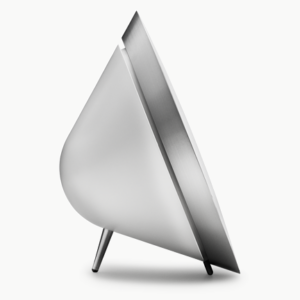
BeoPlay A8
AirPlay 2 Receiver
Raspberry Pi Zero 2 W · USB Audio · Complete Setup Guide
What this guide builds
• AirPlay 2 receiver — appears as “BeoPlay A8” on every iPhone on the network
• iPhone volume control — real-time via ALSA software volume (softvol)
• Auto-wake — A8 powers on automatically when you start streaming
• Auto-sleep — A8 enters standby 30 seconds after playback stops
• Startup jingle — ascending tone on wake, descending tone before sleep
• Physical buttons — Previous / Next / Play-Pause mapped to AirPlay
Hardware Required
Item | Notes |
Raspberry Pi Zero 2 W | Main compute board |
MicroSD card | 8 GB minimum, Class 10 or better |
USB-C power supply | 5V / 2.5A |
MicroSD card reader | For flashing from your Mac/PC |
USB OTG cable | USB-A to Micro-USB, to connect A8 to Pi |
BeoPlay A8 | Connected to Pi via USB |
Step 1 — Flash Raspberry Pi OS Lite
Use the 64-bit Lite image — no desktop environment, minimal RAM and CPU footprint.
1. Download Raspberry Pi Imager from raspberrypi.com/software
2. Choose OS → Raspberry Pi OS (other) → Raspberry Pi OS Lite (64-bit)
3. Click the  gear icon before flashing and configure:
Hostname: airplay
SSH: enabled (password or key)
Wi-Fi: your SSID and password
Username: pi Password: (choose a secure one)
4. Flash to SD card, insert into Pi, power on, wait ~60 seconds
5. SSH in:
ssh pi@airplay.local
 NOTE If airplay.local doesn’t resolve, find the Pi’s IP in your router’s DHCP table and use that directly.
Step 2 — System Update & Dependencies
sudo apt update && sudo apt upgrade -y
sudo apt install -y \
shairport-sync \
alsa-utils \
avahi-daemon \
usbutils \
evtest \
sox \
git
Step 3 — Connect & Identify the BeoPlay A8
Plug the BeoPlay A8 into the Pi via USB, then verify it is detected:
aplay -l
You should see an entry like:
card 0: Speaker [B&O Speaker], device 0: USB Audio [USB Audio]
 IMPORTANT The card name is Speaker and the ALSA card number is 0. We will always reference it by name (Speaker) throughout this guide to avoid problems if the number changes after a reboot.
Confirm the USB port path (needed for wake/sleep scripts):
dmesg | grep -i “beoplay\|B&O\|bang” | tail -10
Look for a line like:
usb 1-1: Product: B&O Speaker
The port path is 1-1. Note this — you will use it in Steps 7 and 8.
Step 4 — Configure ALSA
Create the ALSA configuration file that defines the softvol layer on top of the A8’s USB DAC. This is what enables iPhone volume control.
sudo nano /etc/asound.conf
Paste the following (exactly as shown — card name Speaker, not a number):
pcm.beoplay_hw {
type hw
card Speaker
device 0
}
pcm.beoplay_softvol {
type softvol
slave.pcm “beoplay_hw”
control {
name “SoftMaster”
card Speaker
}
min_dB -60.0
max_dB 0.0
resolution 100
}
pcm.!default {
type plug
slave.pcm “beoplay_softvol”
}
ctl.!default {
type hw
card Speaker
}
Initialise the SoftMaster control (ALSA only creates it after first use):
speaker-test -c 2 -t sine -f 440 -D beoplay_softvol &
sleep 3
kill %1
amixer -c Speaker sset SoftMaster 100%
sudo alsactl store
sudo systemctl enable alsa-restore
Verify the control exists:
amixer -c Speaker sget SoftMaster
You should see: Limits: Playback -6000 – 0
Step 5 — Configure Shairport-Sync
sudo nano /etc/shairport-sync.conf
Replace the entire file with:
general = {
name = “BeoPlay A8”;
volume_range_db = 60;
};
alsa = {
output_device = “default”;
mixer_control_name = “SoftMaster”;
mixer_device = “hw:Speaker”;
};
sessioncontrol = {
run_this_before_play_begins = “/usr/local/bin/beoplay-wake.sh”;
run_this_after_play_ends = “/usr/local/bin/beoplay-sleep.sh”;
wait_for_completion = “yes”;
};
IMPORTANT The sessioncontrol block is critical — it triggers wake/sleep on AirPlay session events. Any syntax error (missing semicolon, wrong quote type) silently disables it.
Step 6 — Create Jingle Sound Files
Generate short tones that play when the A8 wakes up and before it sleeps:
# Wake jingle — two ascending tones
sox -n /usr/local/share/beoplay-wake.wav synth 0.15 sine 880 synth 0.15 sine 1100 : synth 0.15 sine 880 synth 0.15 sine 1100
# Sleep jingle — two descending tones
sox -n /usr/local/share/beoplay-sleep.wav synth 0.15 sine 1100 synth 0.15 sine 880 : synth 0.15 sine 1100 synth 0.15 sine 880
Test them:
aplay -D default /usr/local/share/beoplay-wake.wav
aplay -D default /usr/local/share/beoplay-sleep.wav
Step 7 — Create the Wake Script
This script binds the A8’s USB port (powering it on), waits for the DAC to initialise, then plays the wake jingle. Replace 1-1 with your USB port path from Step 3.
sudo bash -c ‘cat > /usr/local/bin/beoplay-wake.sh << EOF
#!/bin/bash
echo “1-1” > /sys/bus/usb/drivers/usb/bind
sleep 6
aplay -q -D default /usr/local/share/beoplay-wake.wav
EOF’
sudo chmod +x /usr/local/bin/beoplay-wake.sh
IMPORTANT The 6-second sleep is essential. The A8’s USB DAC needs time to fully initialise after bind — too short and shairport-sync crashes trying to open the audio device.
Step 8 — Create the Sleep Script
This script waits 30 seconds for an idle grace period, plays the sleep jingle, then unbinds the USB port putting the A8 into standby.
sudo bash -c ‘cat > /usr/local/bin/beoplay-sleep.sh << EOF
#!/bin/bash
sleep 30
aplay -q -D default /usr/local/share/beoplay-sleep.wav
sleep 1
echo “1-1” > /sys/bus/usb/drivers/usb/unbind
EOF’
sudo chmod +x /usr/local/bin/beoplay-sleep.sh
NOTE Adjust the sleep 30 value to taste. Use 60 for more tolerance between tracks, 10 for faster standby.
Step 9 — Fix sysfs Permissions
Shairport-sync runs as an unprivileged user and cannot write to the USB bind/unbind sysfs files by default. Apply world-write permission and create a udev rule to reapply it after every reboot:
# Apply immediately
sudo chmod 0222 /sys/bus/usb/drivers/usb/bind
sudo chmod 0222 /sys/bus/usb/drivers/usb/unbind
# Persist across reboots via udev
sudo nano /etc/udev/rules.d/99-usb-bind.rules
Paste into the udev rules file:
SUBSYSTEM==”usb”, ACTION==”add|remove”, RUN+=”/bin/chmod 0222 /sys/bus/usb/drivers/usb/bind /sys/bus/usb/drivers/usb/unbind”
Step 10 — Boot Services
Create a boot service that pre-binds the A8 and applies sysfs permissions before shairport-sync starts:
sudo nano /etc/systemd/system/beoplay-init.service
Paste:
[Unit]
Description=Bind BeoPlay A8 USB on boot
After=sound.target
Before=shairport-sync.service
[Service]
Type=oneshot
ExecStart=/bin/bash -c ‘echo “1-1” > /sys/bus/usb/drivers/usb/bind’
ExecStartPost=/bin/chmod 0222 /sys/bus/usb/drivers/usb/bind /sys/bus/usb/drivers/usb/unbind
RemainAfterExit=yes
[Install]
WantedBy=multi-user.target
Create the ALSA softvol init service:
sudo nano /etc/systemd/system/alsa-softvol-init.service
Paste:
[Unit]
Description=Initialise ALSA SoftMaster softvol control
Before=shairport-sync.service
After=sound.target beoplay-init.service
[Service]
Type=oneshot
ExecStart=/bin/bash -c “aplay -q -D default /usr/share/sounds/alsa/Front_Center.wav || true”
RemainAfterExit=yes
[Install]
WantedBy=multi-user.target
Update shairport-sync service to wait for both:
sudo nano /lib/systemd/system/shairport-sync.service
Update the [Unit] section:
[Unit]
Description=Shairport Sync – AirPlay Audio Receiver
After=sound.target network-online.target beoplay-init.service alsa-softvol-init.service
Wants=network-online.target
Requires=beoplay-init.service alsa-softvol-init.service
Add Restart to the [Service] section:
[Service]
Restart=always
RestartSec=5
Enable everything:
sudo systemctl daemon-reload
sudo systemctl enable beoplay-init
sudo systemctl enable alsa-softvol-init
sudo systemctl enable shairport-sync
Step 11 — Physical Button Mapping (Optional)
Map the A8’s Previous / Next / Play-Pause buttons to AirPlay commands.
Find the A8 input device:
sudo evtest
Note the event device number (e.g. /dev/input/event1). Then create the handler:
sudo nano /usr/local/bin/beoplay-buttons.sh
#!/bin/bash
DBUS_DEST=”org.gnome.ShairportSync”
DBUS_PATH=”/org/gnome/ShairportSync/RemoteControl”
DBUS_IFACE=”org.gnome.ShairportSync.RemoteControl”
INPUT_DEV=”/dev/input/event1″ # change to your event device
evtest “${INPUT_DEV}” | while read line; do
if echo “$line” | grep -q “KEY_PREVIOUSSONG.*value 1”; then
dbus-send –system –dest=”${DBUS_DEST}” “${DBUS_PATH}” \
“${DBUS_IFACE}.Previous”
elif echo “$line” | grep -q “KEY_NEXTSONG.*value 1”; then
dbus-send –system –dest=”${DBUS_DEST}” “${DBUS_PATH}” \
“${DBUS_IFACE}.Next”
elif echo “$line” | grep -q “KEY_PLAYPAUSE.*value 1”; then
dbus-send –system –dest=”${DBUS_DEST}” “${DBUS_PATH}” \
“${DBUS_IFACE}.PlayPause”
fi
done
sudo chmod +x /usr/local/bin/beoplay-buttons.sh
sudo nano /etc/systemd/system/beoplay-buttons.service
[Unit]
Description=BeoPlay A8 Button Handler
After=shairport-sync.service
[Service]
ExecStart=/usr/local/bin/beoplay-buttons.sh
Restart=on-failure
User=root
[Install]
WantedBy=multi-user.target
sudo systemctl daemon-reload
sudo systemctl enable beoplay-buttons
sudo systemctl start beoplay-buttons
Step 12 — Stability & Final Boot
# Disable swap (extends SD card lifespan)
sudo dphys-swapfile swapoff
sudo dphys-swapfile uninstall
sudo systemctl disable dphys-swapfile
# Disable Wi-Fi power saving (prevents audio dropouts)
sudo nano /etc/rc.local
# Add before exit 0:
iwconfig wlan0 power off
# Enable hardware watchdog
echo “dtparam=watchdog=on” | sudo tee -a /boot/firmware/config.txt
sudo apt install -y watchdog
sudo systemctl enable watchdog
# Final reboot to test everything from cold start
sudo reboot
Verification Checklist
After rebooting, verify each feature in order:
6. ssh pi@airplay.localSSH back in:
7. sudo systemctl status shairport-sync beoplay-init alsa-softvol-initCheck all services running:
8. Check A8 LED is green (USB bound on boot)
9. On iPhone: Control Center → AirPlay → select BeoPlay A8
10. Play music — wake jingle plays, then music streams from A8
11. Adjust iPhone volume — loudness changes in real time
12. Stop music — after 30s, sleep jingle plays, LED turns off
13. Play again — LED turns on, wake jingle plays, music resumes
Troubleshooting
Symptom | Fix |
iPhone doesn’t see BeoPlay A8 | sudo systemctl status avahi-daemon shairport-sync |
No audio / error 524 | Check aplay -l — A8 may be unbound. Run beoplay-wake.sh manually |
Volume doesn’t change | amixer -c Speaker sget SoftMaster — check level is not 0% |
LED doesn’t turn off | Check chmod 0222 on sysfs bind/unbind files. Test sleep script manually |
LED doesn’t turn on | Check beoplay-wake.sh content (exactly 3 lines). Test manually with sudo |
Permission denied in logs | sudo chmod 0222 /sys/bus/usb/drivers/usb/bind /sys/bus/usb/drivers/usb/unbind |
Shairport-sync crashes on connect | Increase sleep in wake script from 6 to 8 seconds |
Card number changed after reboot | asound.conf uses name Speaker not number — should be immune. Run aplay -l to verify |
Audio dropouts on Wi-Fi | sudo iwconfig wlan0 power off |
SoftMaster not found on start | Run speaker-test to initialise it, then sudo alsactl store |
System Architecture
iPhone (AirPlay 2)
│
▼
shairport-sync
┌─────────────────────────────────────────────┐
│ Session starts: │
│ beoplay-wake.sh │
│ → USB bind → A8 powers on (LED green) │
│ → sleep 6s → DAC initialises │
│ → wake jingle plays │
│ │
│ During playback: │
│ ALSA softvol (SoftMaster) │
│ → iPhone volume → PCM level change │
│ → USB Audio stream → A8 DAC │
│ │
│ Session ends: │
│ beoplay-sleep.sh │
│ → sleep 30s grace period │
│ → sleep jingle plays │
│ → USB unbind → A8 standby (LED off) │
└─────────────────────────────────────────────┘
│
▼
BeoPlay A8 (USB DAC + amplifier)
✓ TIP Set the A8’s physical volume knob to a comfortable fixed maximum level and leave it there. Use your iPhone volume for all day-to-day control.
Tested on: Raspberry Pi OS Lite 64-bit (Bookworm) · shairport-sync 4.x · February 2026